
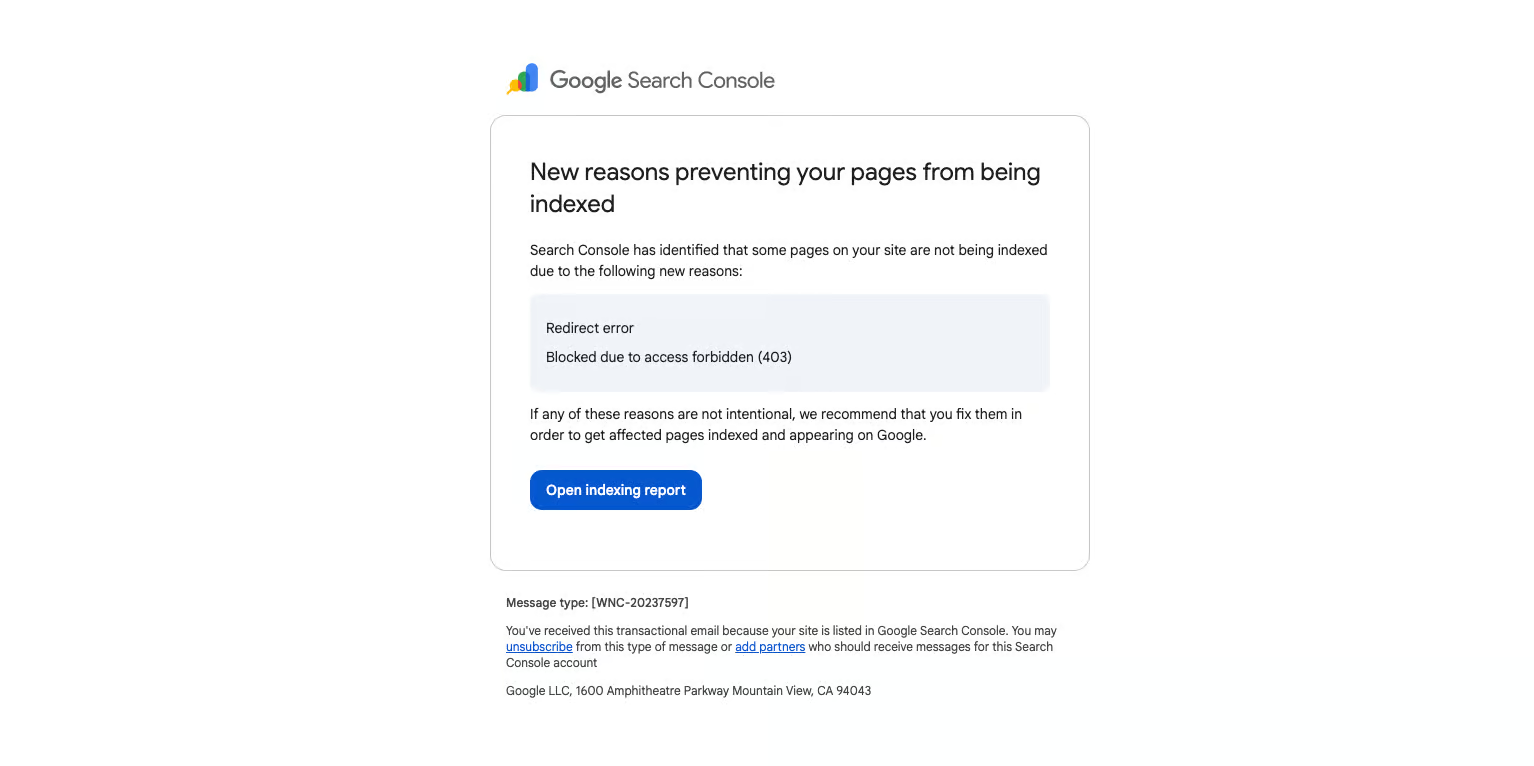
Google Search Console will occasionally email site owners with the subject line: “New reasons prevent pages from being indexed.” If you’re seeing crawl errors Google Search Console is reporting (or a sudden spike in “Excluded” URLs), it can feel like something is broken.
In many cases, it’s not. These alerts are often a sign that Google is successfully discovering your URLs, crawling what it’s allowed to crawl, and then making normal indexing decisions (like respecting your canonical tags, noindex directives, redirects, and 404s).
Important: A high number of “errors” or “excluded” URLs in Search Console is not a penalty by itself. However, it can become an SEO problem if Google can’t crawl or index the pages that actually matter (your service pages, product pages, location pages, and other revenue-driving content).
Why you’re getting the “New reasons prevent pages from being indexed” email
This Search Console email commonly appears after:
- Launching a new website (Google discovers lots of URLs quickly)
- Changing permalink structure (old URLs become redirects or 404s)
- Migrating domains (http → https, non-www → www, etc.)
- Updating categories/tags or filters (new archive URLs get created)
- Publishing lots of new content (Google has more to crawl and evaluate)
- Adding/removing a sitemap (Google reprocesses submitted URLs)
Search Console is essentially saying: “We found these URLs, but here’s why they aren’t indexed.” Sometimes the reason is perfectly healthy (like “Page with redirect” or “Alternate page with proper canonical tag”). Sometimes it’s a genuine technical issue (like 5xx server errors or redirect loops).
Crawl errors vs. indexing issues: what Google Search Console is really telling you
To troubleshoot crawl errors Google Search Console flags, you need to separate two concepts:
- Crawling = Googlebot can access and fetch the URL (it can “see” the page)
- Indexing = Google chooses to store the page in its index (eligible to appear in search results)
A URL can be:
- Crawlable but not indexed (common with thin, duplicate, or low-value pages)
- Not crawlable and not indexed (blocked by robots.txt, 403/401, etc.)
- Indexed even if not crawlable (yes, this happens—usually when it was indexed previously or discovered via links)
That’s why many “crawl errors” in GSC are actually a mix of crawl problems and indexing decisions.
Which crawl errors in Google Search Console matter most?
Before you start “fixing everything,” quickly sort each issue into one of these buckets:
- Is the URL supposed to exist?
- If no: a 404, 410, or redirect can be totally normal.
- If yes: investigate immediately.
- Is the URL supposed to be indexed?
- If no (admin pages, internal search, staging URLs, faceted filters): “Excluded by noindex,” “Alternate with canonical,” etc. can be correct.
- If yes: prioritize it.
- Is this isolated or sitewide?
- One broken URL is usually not urgent.
- Thousands of 5xx errors or redirect loops can be a serious technical problem.
- Is the URL in your sitemap?
- If it’s submitted in your sitemap, Google assumes you want it indexed—so “Submitted URL blocked by robots.txt” is a red flag.
Important definitions
- Indexing
- When a page is added to Google’s index (Google’s database of pages that can appear in search results).
- Crawling
- When Googlebot visits a URL to fetch content, read it, and follow links.
- Redirect
- When a URL sends users (and Googlebot) to a different URL (for example, a 301 or 302).
- Canonical URL (canonical)
- The preferred version of a URL that Google should treat as the main version when multiple URLs show the same (or very similar) content.
- Non-canonical URL
- A URL that is not the preferred version. These are often excluded from indexing when they duplicate or redirect to the canonical page.
- robots.txt
- A file at
example.com/robots.txtthat tells search engine crawlers which paths they are allowed or not allowed to crawl. - Meta robots tag
- An HTML tag (usually in the
<head>) that can tell search engines whether to index the page and/or follow links (common values:index,noindex,follow,nofollow). - X-Robots-Tag
- The HTTP header version of a meta robots tag. Useful for applying
noindexrules to PDFs and other non-HTML files. - Noindex
- A directive that tells search engines not to index a page, even if it can be crawled.
- HTTP status code
- The response code your server returns when a URL is requested (like 200, 301, 404, 500). Google relies on this heavily to understand what happened to a URL.
- 200 OK
- The server successfully returned the page. (This does not guarantee the page will be indexed.)
- 301 Redirect (Permanent Redirect)
- A permanent redirect that signals a URL has moved. Google typically consolidates indexing signals to the destination URL over time.
- 302 Redirect (Temporary Redirect)
- A temporary redirect. Google may keep the original URL indexed depending on context.
- 4xx errors
- Client-side errors like 401 (unauthorized), 403 (forbidden), 404 (not found), 410 (gone), 429 (too many requests).
- 5xx errors
- Server-side errors like 500, 502, 503, 504 (the server failed to fulfill the request).
- Soft 404
- A page that looks like “not found” content to Google but returns a 200 OK (or another non-404 code). Google may treat it like a 404 for indexing purposes.
- Sitemap
- (Usually XML) A list of URLs you want search engines to discover and crawl, often at
/sitemap.xml. - Rendering
- When Google loads the page and runs scripts (including JavaScript) to see the final visible content.
- Page indexing status (formerly “Coverage”)
- The category GSC assigns to a URL based on crawl/index results (Indexed, Not indexed, Excluded, etc.).
Common crawl errors Google Search Console shows (and how to fix each one)
Below are the most common messages you’ll see in the Page indexing report, along with what they mean and what to do next.
Alternate page with proper canonical tag
What it means: Google found this URL, but the page is correctly pointing to a different URL as the canonical (the “main” version). This URL is treated as an alternate and typically won’t be indexed.
Why it happens: Common with parameter URLs, duplicate versions (trailing slash vs no slash), and content that exists in multiple places (like category + tag archives).
What to do:
- If this is intentional: no action needed.
- Make sure your sitemap only includes the canonical URLs you want indexed.
- Make internal links consistent (link to the canonical version, not alternates).
- Use the URL Inspection tool to compare “User-declared canonical” vs “Google-selected canonical.”
Blocked by access forbidden (403)
What it means: Google tried to load the page, but your server returned a 403 Forbidden. Googlebot is not allowed to access the URL.
Common causes:
- Firewall/WAF rules blocking Googlebot
- Country/IP restrictions
- Server-level authentication or staging protection applied too broadly
- Security plugins blocking crawlers
What to do:
- Confirm the URL is publicly accessible in an incognito window.
- Check firewall/security logs for blocked requests from Googlebot IPs/user agents.
- If the page should be indexed, allow access and then use URL Inspection → Test Live URL.
- If the page should remain private, remove it from your sitemap and avoid linking to it publicly.
Blocked due to other 4xx issue
What it means: Google received a 4xx status code that isn’t a standard 401/403/404 (for example: 410 Gone, 429 Too Many Requests, etc.).
What to do (depends on the code):
- 410 Gone: This is okay for intentionally removed pages. Remove the URL from sitemaps and internal links, and consider a 301 redirect if there’s a close replacement.
- 429 Too Many Requests: Googlebot is being rate-limited. Reduce aggressive bot blocking, raise rate limits for Googlebot, improve caching, and ensure your server can handle crawl bursts.
- Other 4xx codes: Check your server configuration and logs to see why requests are failing.
Crawled – currently not indexed
What it means: Google successfully crawled the page but decided not to index it (at least for now).
Common causes:
- Duplicate or near-duplicate content
- Thin content (low word count, little unique value)
- Weak internal linking (Google doesn’t see it as important)
- Pages that look like soft 404s or low-quality doorway pages
What to do:
- Make sure the page is unique and useful (expand content, add original images, answer intent).
- Add internal links from relevant, authoritative pages on your site.
- Check for accidental duplication (printer-friendly versions, parameters, multiple categories).
- Use URL Inspection and review the rendered page to ensure Google can see the main content.
- After improvements, click Request Indexing (but only after you actually change something meaningful).
Discovered – currently not indexed
What it means: Google knows the URL exists but hasn’t crawled it yet.
This is common when:
- Your site is new or recently migrated
- You published many new URLs at once
- Your site has a large number of low-value URLs (Google delays crawling)
- Your server is slow or unstable (Google backs off)
What to do:
- Ensure the URL is in your sitemap only if you want it indexed.
- Improve internal linking to help Google discover the page as important.
- Reduce “URL clutter” (faceted navigation, infinite calendar pages, endless parameters).
- Check server performance—frequent 5xx errors can lead to slower crawling.
Duplicate, Google chose different canonical than user
What it means: You declared a canonical URL, but Google selected a different canonical based on its own signals. Google may index the URL it chose, not the one you specified.
Why it happens: Google sees conflicting signals, such as:
- Internal links pointing mostly to a non-canonical version
- Sitemap submitting a different version than your canonical tags
- Canonicals pointing to a URL that redirects, 404s, or is blocked
- Inconsistent URL formats (http vs https, www vs non-www, trailing slash)
What to do:
- Pick one preferred URL format and enforce it with 301 redirects.
- Use self-referential canonical tags on the preferred pages.
- Update internal links to consistently point to the preferred (canonical) URLs.
- Ensure your sitemap includes only canonical URLs.
- Re-check with URL Inspection after changes.
Duplicate without user-selected canonical
What it means: Google considers the URL a duplicate of another page, but it didn’t find a clear canonical directive telling Google which version you prefer. Google will choose a canonical on its own and exclude duplicates.
What to do:
- Add a rel=”canonical” tag to point to your preferred version.
- If the duplicate URL should never be accessed, consider a 301 redirect to the canonical.
- Clean up internal linking so Google repeatedly sees the preferred URL.
Excluded by ‘noindex’ tag
What it means: Google found a noindex directive (meta robots tag or X-Robots-Tag header) and will not index the page.
When it’s normal:
- Thank-you pages, cart/checkout pages
- Internal search results pages
- Staging or dev URLs (ideally blocked from public access too)
- Low-value archives you don’t want in search
What to do if the page should be indexed:
- Remove the
noindexdirective (check SEO plugins, theme templates, and server headers). - Confirm Google can crawl it (not blocked by robots.txt).
- Remove the URL from the sitemap until it’s indexable, then resubmit/validate.
Indexed, though blocked by robots.txt
What it means: The URL is indexed, but Google is currently blocked from crawling it because of robots.txt.
How this happens: Google may have indexed it in the past (before it was blocked), or discovered it via links and indexed what it could without a fresh crawl.
What to do:
- If you want it indexed and updated: allow crawling in
robots.txt, then request indexing. - If you want it removed from Google: don’t rely on robots.txt alone. Use one of these:
- Return 404/410 (for permanently removed content)
- 301 redirect it to the best replacement
- Allow crawling and add
noindex(Google must be able to crawl the page to see the noindex)
Not found (404)
What it means: Google requested the URL and your server returned 404 Not Found.
When it’s normal: If a page was removed and there’s no relevant replacement, a 404 can be the correct outcome.
What to do:
- If the page should exist: restore it or fix the URL generation issue.
- If it moved: create a 301 redirect to the new URL.
- If it was removed: remove it from your sitemap and update any internal links pointing to it.
Page indexed without content
What it means: Google indexed the URL but detected missing or empty content.
Common causes:
- Rendering issues (heavy JavaScript, blocked resources, JS errors)
- Server returns different HTML to Googlebot than to users
- Lazy-loaded content that never appears for Google
- Page requires interaction/login/cookies to show main content
What to do:
- Use URL Inspection → Test Live URL and review the rendered output.
- Make sure essential CSS/JS files are not blocked in robots.txt.
- If content is injected via JS, consider server-side rendering or pre-rendering for critical pages.
- Check uptime and server logs for partial responses/timeouts.
Page with redirect
What it means: Google tried to crawl the URL and got redirected to a different URL. The redirecting URL is typically not indexed (the destination is).
Example: Users are redirected to /about when visiting /about-us. Google will treat /about as the indexable page and label /about-us as “Page with redirect.”
What to do:
- Update internal links to point directly to the final URL (avoid unnecessary hops).
- Make sure your sitemap lists the final destination URL, not the redirecting URL.
- Check for redirect chains and simplify them when possible.
Redirect error
What it means: Google encountered a problem following your redirect.
Common causes:
- Redirect loops (A → B → A)
- Redirect chains that are too long
- Redirects pointing to broken URLs (404/5xx)
- Misconfigured rewrite rules
What to do:
- Test the URL with a redirect checker and confirm the final URL returns
200 OK. - Fix loops and reduce chains (ideally 1 hop).
- After changes, use URL Inspection to confirm Google can crawl the final destination.
Server error (5xx)
What it means: Google tried to fetch the URL and your server returned a 5xx error (500, 502, 503, 504).
Why it matters: Persistent 5xx errors can stop Googlebot from crawling key pages, and Google may reduce crawl rate if your server looks unstable.
What to do:
- Check hosting logs and uptime monitoring to identify when/why failures occur.
- Fix server misconfigurations, plugin/theme crashes, or database errors.
- Improve performance (caching, CDN, optimized database, adequate server resources).
- If maintenance is intentional, return
503 Service Unavailablewith aRetry-Afterheader (better than a generic 500).
Submitted URL blocked by robots.txt
What it means: You submitted the URL to Google (usually via your sitemap), but robots.txt blocks Googlebot from crawling it.
Why it matters: This is a mixed signal: your sitemap says “index this,” robots.txt says “don’t crawl this.”
What to do:
- If you want it indexed: remove the robots.txt block.
- If you don’t want it indexed: remove it from your sitemap (and consider using noindex if appropriate).
Submitted URL marked ‘noindex’
What it means: You submitted the URL in your sitemap, but the page has a noindex directive.
What to do:
- If you want it indexed: remove the
noindexdirective and request indexing. - If you don’t want it indexed: remove it from your sitemap so Google doesn’t keep re-checking it.
URL blocked by robots.txt / URL marked ‘noindex’
What it means: Google is being told not to crawl the URL (robots.txt) and/or not to index it (noindex). This often happens with auto-generated pages like date archives, media attachment pages, or certain taxonomy/filter URLs.
What to do:
- Decide the goal for that URL type:
- If it should be searchable: make it crawlable and indexable (remove blocks/noindex).
- If it should not be searchable: keep it excluded, and ensure it’s not in the sitemap.
- Keep signals consistent (don’t submit blocked/noindexed URLs in your sitemap).
Submitted URL seems to be a Soft 404
What it means: Google can load the page, but it looks like a “not found” page (even if the server returns 200 OK).
Common causes:
- Empty category/tag pages (“No posts found”)
- Internal search results pages with no results
- Product pages showing “no longer available” but still returning 200
- Thin placeholder content
What to do:
- If the page truly doesn’t exist: return a proper 404 or 410 status.
- If the page should exist: add meaningful content and make the page clearly useful.
- If it’s an “out of stock” product: consider keeping the page with strong content + alternatives, or 301 redirect to the closest replacement if it’s permanently discontinued.
Submitted URL returns unauthorized request (401)
What it means: Google received a 401 Unauthorized response. The URL requires authentication.
What to do:
- If the content should be public and indexable: remove the authentication requirement.
- If the content should stay private: remove it from the sitemap and don’t link to it publicly.
How to investigate any crawl error in Google Search Console (step-by-step)
- Open the Page indexing reportIn GSC, go to Indexing → Pages (sometimes labeled “Page indexing”). Click into the specific reason (403, 404, “Crawled – currently not indexed,” etc.).
- Click a sample URLPick a representative URL (especially one that should be indexed). Open it in a browser and confirm what a normal user sees.
- Use the URL Inspection toolPaste the URL into the top search bar in GSC. Review:
- Indexing status (indexed vs not indexed)
- Last crawl information
- Crawl allowed? and Indexing allowed?
- User-declared canonical vs Google-selected canonical
- Test the live URLClick Test Live URL to see what Googlebot can fetch right now. If rendering is involved, review the rendered HTML and screenshot.
- Fix the root cause (not just the symptom)For example: don’t just “request indexing” for a page that’s thin; improve the content and internal linking first.
- Validate the fixFor report-based issues, use the Validate fix button in GSC after deploying a real fix. For single URLs, “Request Indexing” can help—but only when the page is truly ready to be indexed.
Best practices to reduce crawl errors (and keep your reports cleaner)
- Keep your sitemap clean: include only 200-status, canonical, indexable URLs.
- Use consistent URL formatting: enforce https, one host version (www or non-www), and consistent trailing slash rules.
- Avoid redirect chains: update links to point directly to the final destination.
- Control low-value URL “explosions”: faceted navigation, calendars, and parameter URLs can create huge crawl waste.
- Monitor server stability: repeated 5xx errors can reduce crawl frequency sitewide.
- Be intentional with noindex: if something is noindex, it usually shouldn’t be in the sitemap.
FAQ
Do crawl errors in Google Search Console hurt SEO rankings?
Not automatically. Google doesn’t “penalize” you for having a long list of excluded URLs. But crawl errors can hurt performance when they block Googlebot from accessing or indexing important pages (for example, your main service pages returning 5xx errors or a key page accidentally set to noindex).
How long does it take for Search Console crawl errors to update after I fix them?
Usually days to weeks. Google needs to recrawl affected URLs and then refresh reporting. Using Validate fix can speed up reprocessing, but you still have to wait for Googlebot to revisit URLs.
Should I redirect every 404?
No. Redirect 404s when there is a clear, relevant replacement page. If a page is truly gone and there’s no close match, a 404 (or 410) is often the cleanest option. Redirecting everything to the homepage can create a poor user experience and confuse Google.
What’s the difference between “Discovered – currently not indexed” and “Crawled – currently not indexed”?
- Discovered – currently not indexed: Google knows the URL exists but hasn’t crawled it yet.
- Crawled – currently not indexed: Google crawled the URL but decided not to index it.
What should I do first when I see crawl errors Google Search Console emails me about?
Start by checking whether the URLs are pages you actually want indexed. Then prioritize issues affecting important pages (5xx, redirect errors, accidental noindex/robots blocks). Finally, clean up your sitemap so it only contains indexable canonical URLs.
Need help fixing crawl errors in Google Search Console?
If you’re not sure whether a specific status is harmless (like canonicals and redirects) or a real issue (like 5xx errors, blocked pages, or accidental noindex tags), Local Robot can help. We’ll review your Google Search Console reports, pinpoint what’s preventing key pages from being crawled or indexed, and map out the exact fixes—sitemaps, canonicals, redirects, robots.txt, and on-page directives—so Google can crawl the pages that matter.
Contact Local Robot to get a technical SEO review and a clear action plan.